Locate evidence in full texts; draft a structured extraction; compare methods, contexts and reported findings across selected included studies.
Research Tools / Stage 2 / Gemini Notebook
STAGE 2 · DOCUMENT ANALYSIS · HANDS-ON TOOL GUIDE
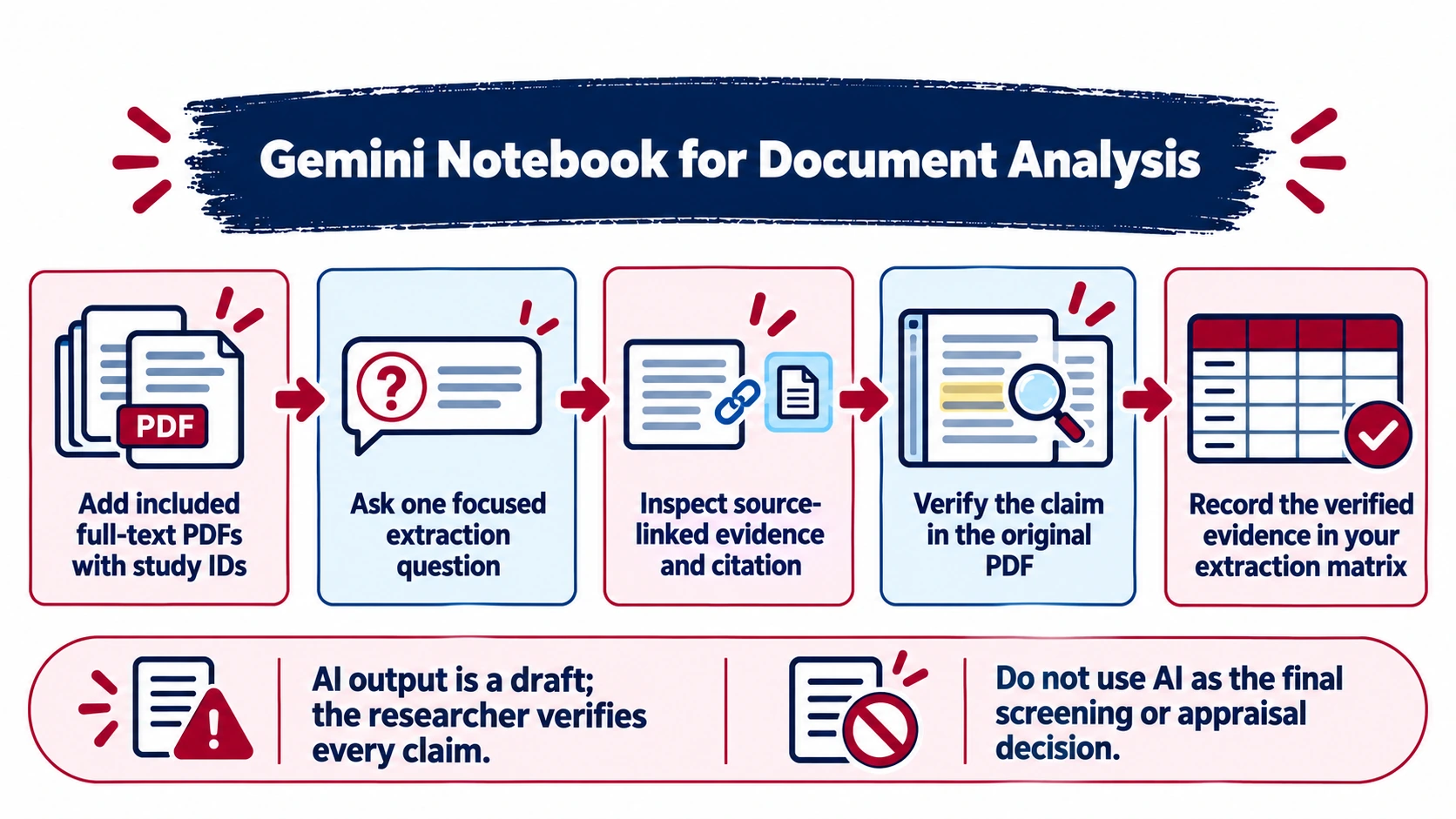
Gemini Notebook for SLR Document Analysis
Use Gemini Notebook (formerly known as NotebookLM) to ask questions about a selected set of full-text sources, inspect source-linked citations, and prepare a draft evidence extraction. The researcher checks the evidence and records the final decision.
1 · What this tool is for
Notebook-based chat can answer questions from uploaded sources, let you choose which sources to use, and provide citations linking back to quoted material. Open each citation and check the original text before recording a claim. Google: Use chat in Gemini Notebook ↗
Do not use it as a screening vote, quality score, or authority for inclusion decisions. It supports evidence review; reviewers decide and document.
Suggested boundary: Use Notebook after records have been screened and the papers for analysis are selected. For appraisal, ask it to map evidence to criteria; the reviewer assigns and justifies each judgement.
2 · Login and create a notebook
- Open notebook.google.com or Gemini Apps and sign in with your Google account.
- If your account shows a Notebooks option, select New notebook. Availability and menu labels may vary by account, plan and rollout.
- Name the notebook for a bounded analysis task, for example Stage 2 · Pilot extraction · AI feedback in programming education.
- Select Add sources and upload a small pilot set. Supported sources include PDFs, documents, spreadsheets, images, audio, text/Markdown, Google Drive files, websites and copied text. Google: Add or discover notebook sources ↗
- Wait for the sources to load. Check their titles and select only the sources relevant to your current question.
- Ask a focused question. Review its citations and save a useful response as a note if needed.
Workshop setup: Use a laptop browser for the demonstration. Confirm that Gemini Notebook is available with the account participants plan to use before the session.
3 · Hands-on workflow for Stage 2
| Action | Participant does | Evidence to retain |
|---|---|---|
| Prepare | Choose two or three included articles for a pilot and note their study IDs. | Study IDs and source files used. |
| Load | Create a notebook and add the pilot PDFs or practice documents. | Notebook title and source list. |
| Question | Ask for one field at a time or a compact extraction table aligned with the review questions. | Draft value plus Notebook citation. |
| Verify | Open the citation, read the surrounding context, and check the PDF page or section. | Verified quotation/paraphrase and page reference. |
| Record | Transfer only verified content to the extraction matrix and note uncertainties. | Completed pilot rows in the Stage 2 extraction template. |
| Compare | Ask for similarities and differences across selected sources; inspect each supporting citation. | Evidence-linked synthesis notes, not unsupported generalisations. |
4 · Copyable prompts for Stage 2
The first three prompts cover common document-analysis tasks. The additional prompts below extend the bank across protocol alignment, full-text evidence, study methods, outcomes, limitations, research-question mapping, synthesis and audit. Replace bracketed fields, select only relevant sources, and verify every citation.
Prompt A · Extract evidence from one study
Prompt B · Map evidence to appraisal criteria
Prompt C · Compare evidence across studies
Prompt D · Check protocol-to-paper alignment
Prompt E · Identify the study design and context
Prompt F · Extract outcome measures and reported results
Prompt G · Extract limitations and evidence gaps
Prompt H · Map evidence to a research question
Prompt I · Compare methods across studies
Prompt J · Find contrasting or contradictory findings
Prompt K · Build a source-grounded RQ evidence matrix
Prompt L · Check a verified PRISMA count table
Prompt M · Audit extraction traceability
5 · Practise with synthetic documents
These short, fictional reports provide different methods and findings so participants can practise source-grounded extraction and comparison. They are training materials only and must never be cited as real studies.
SYN-01 · Hint-based pilotTwo-group pilot; immediate test and learner feedback.SYN-02 · Conversational assistantOptional use; no significant score difference; interview findings.SYN-03 · Student experienceTwo-site qualitative study; perceptions, no performance measure.
- Download all three Markdown files, then add them as sources to a new practice notebook.
- Ask Prompt A for SYN-01 and SYN-02 separately. Check the citations and compare what each report does and does not measure.
- Ask Prompt C to compare the three sources. Check that the response does not present student perceptions as measured learning gains.
- Record a verified pilot row in the Stage 2 extraction matrix. Mark missing information as “not reported”.
Synthetic data: IDs SYN-01, SYN-02 and SYN-03 and all article content are invented for training. Do not add them to a real SLR corpus or reference list.
6 · Privacy, copyright and verification
- Use only documents you are permitted to upload and process. Follow institutional policies for licensed full texts, unpublished work and confidential documents.
- Google’s current privacy information distinguishes notebook source files from notebook chats: source files are not used directly to train generative AI models, while chats are handled according to the relevant activity settings and privacy notice. Review the current notice and your account type before use.
- Notebook citations help locate source passages, but generated summaries may omit context or be wrong. Verify every value and citation in the original source.
- Do not paste AI-generated conclusions into a paper without checking them against the reviewed studies and your documented synthesis method.
Google: Gemini Apps Privacy Hub ↗
Output for the Stage 2 worksheet: verified extraction fields, pilot notes, synthesis approach and evidence-linked patterns. The complete record-level evidence belongs in your extraction matrix/review system.